title: "Encrypt Files on Windows with Windows Hello (Not Just a Password)" date: "2026-08-26" excerpt: "A password can be phished, guessed or reused. A key bound to the machine's hardware cannot be copied off it. Here is what hardware-bound file encryption on Windows actually means, how it differs from BitLocker, and what happens when the laptop dies." coverImage: "/images/blog/encrypt-files-windows-hello.png" categories: ["Security", "Windows", "Encryption", "Privacy"]
Encrypt Files on Windows with Windows Hello (Not Just a Password)
Most file encryption on Windows comes down to a password. You choose one, the tool derives a key from it, and the strength of everything downstream is the strength of that choice.
Which is a problem, because passwords are the part humans are worst at. They get reused across services. They get written down. They get phished. And an encrypted archive with a weak password is a file an attacker can attack offline, forever, at whatever speed their hardware allows.
Windows Hello offers a different model — and it is worth understanding precisely what it changes, because "hardware-backed" gets used loosely.
What Windows Hello Actually Is
Windows Hello is the platform authenticator built into Windows: face, fingerprint or PIN. The important part is not the biometric — it is where the key lives.
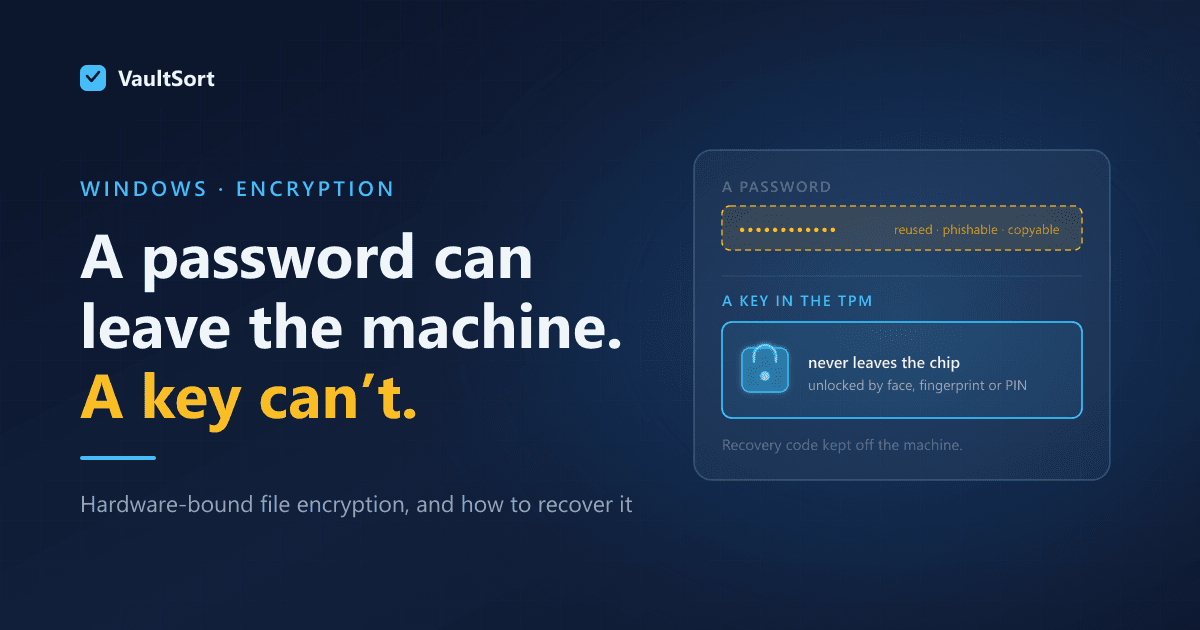
When Hello enrols a credential, the private key is generated inside and held by the machine's TPM, a dedicated security chip separate from the CPU and main memory. The key does not leave it. Software asks the TPM to perform an operation with the key; it never receives the key itself.
Two consequences follow, and they are the whole point:
- The key cannot be copied off the machine. Not by malware, not by someone who takes the drive out, not by you. There is no file to exfiltrate because the key is not a file.
- Your face or fingerprint is not the key, and never leaves the device either. The biometric unlocks the TPM's willingness to use the key. It is not transmitted, not stored by the application, and not sent anywhere.
The PIN surprises people. A Hello PIN can be four digits and still be far stronger than a long password, because it is not a secret that unlocks data — it is a local gesture that unlocks a hardware key, and the TPM enforces its own attempt limits. Guessing it requires the physical machine, and the machine will stop you.
How This Differs from BitLocker
BitLocker is excellent and solves a different problem. It is worth being clear about which is which, because "I have BitLocker" is a common reason people skip file encryption entirely.
| BitLocker | File-level encryption | |
|---|---|---|
| Protects against | The drive being removed or the machine stolen while off | Anyone who can read the file |
| State when you are logged in | Unlocked — every file is readable | Still encrypted until you open it |
| Travels with the file | No | Yes — a copy stays encrypted |
| Protects from other users on the machine | No | Yes |
| Protects a file you email or upload | No | Yes |
The critical row is the second one. BitLocker is transparent once you have signed in. That is the design — it is protecting against physical theft of a powered-off machine. It does nothing about malware running as you, another account on the same PC, a file you copy to a USB stick, or a document you attach to an email.
They are complementary. Full-disk encryption for the drive, file-level encryption for the files that matter individually.
The Question That Actually Matters: What If the Laptop Dies
This is where hardware-bound encryption gets genuinely dangerous if implemented naively.
If the key is in the TPM and cannot leave it, then a dead motherboard means unreadable files. Permanently. No support call recovers them, because the design that stops an attacker extracting the key also stops the vendor doing it.
So any hardware-bound scheme has to answer: what is the recovery path? If a tool cannot answer that clearly, do not put anything irreplaceable in it.
The correct answer is a recovery credential generated at setup, held by you, and stored outside the machine — the same model as a BitLocker recovery key or a 2FA backup code. It is the one part of the process where writing something down on paper is the right engineering decision.
How VaultSort Uses It on Windows
VaultSort for Windows is in beta. Encryption is at full parity with the macOS build, where Windows Hello takes the role Touch ID plays on a Mac.
AES-256 for the file data, with the key protected by the TPM through Windows Hello rather than derived from a password you chose.
Unlock with face, fingerprint or PIN — whatever Hello is configured for. No password to type, and none to reuse.
A recovery code generated at setup. You are prompted to save it before encrypting anything, because the alternative is a class of data loss with no remedy. Keep it somewhere other than the machine it recovers.
Security keys as an alternative. Hardware keys such as YubiKey work through the same WebAuthn path on both Windows and macOS, if you would rather the credential lived on something you carry than in the laptop.
Per-file, not whole-disk. Encrypted files stay encrypted when copied, emailed or backed up — which is the property BitLocker does not give you.
When This Is Worth It
Worth it: client files under a confidentiality obligation, anything covered by a regulatory duty, financial or medical records, a shared or family machine, files that go on removable media.
Probably not worth it: your entire Documents folder. Encrypting everything means unlocking constantly, and people who do that end up disabling it. Encrypt the things that would actually matter if they leaked.
Not a substitute for: backups. An encrypted file you lose is still lost. Encrypt and back up, and make sure the recovery credential is not stored only in the thing being backed up.
Getting Started
- Check Hello is set up — Settings → Accounts → Sign-in options. Most machines from the last several years have a TPM; Windows 11 requires one.
- Enable BitLocker too, if it is not already. They solve different problems and you want both.
- Encrypt the files that matter, not everything.
- Save the recovery code somewhere off the machine. Paper is fine. A password manager on a different device is fine. The Desktop of the laptop you are encrypting is not.
VaultSort for Windows is in beta and free to try. Download it here. The macOS equivalent of this post covers hardware-bound encryption with Touch ID.