title: "VaultSort V4: Hardware-Bound File Encryption — and Touch ID" date: "2026-06-19" excerpt: "Our new V4 encryption format ties every file to a secret that lives inside your hardware — your YubiKey or your Mac's Secure Enclave. Here's what changed, why we rebuilt it, and how to use Touch ID to encrypt your files." coverImage: "/images/blog/v4-encryption.png" categories: ["Encryption", "Touch ID", "Security", "macOS Security", "VaultSort"]
VaultSort V4: Hardware-Bound File Encryption — and Touch ID
We just shipped the two biggest upgrades VaultSort has ever had at once. The first you'll notice the moment you encrypt a file: you can now use Touch ID. The second is the reason we could ship the first responsibly — a complete rebuild of how VaultSort derives encryption keys, called the V4 format.
This post explains what changed, why it matters, and how to start using it. If you want the deep technical version, we've also published a free Security Design Document that documents the whole thing down to the byte level.

VaultSort for macOS — free trial
Encrypt files with Touch ID or a YubiKey, organize with local AI, find and remove duplicates, securely delete sensitive data, and reclaim disk space. One app. One-time purchase. Runs entirely on your Mac.
Encrypt with your fingerprint
Touch ID is now a first-class encryption key in VaultSort. Register it once and it becomes your primary key: select a file, click Encrypt, approve with your fingerprint, done. No YubiKey to carry, no password to remember.
Crucially, Touch ID isn't a convenience shortcut bolted onto something weaker. It runs through the exact same cryptographic path as a hardware security key, backed by Apple's Secure Enclave. The secret that protects your files lives inside the Enclave and never touches your disk.
Touch ID encryption requires macOS 14 Sonoma or later. On macOS 13 and earlier, your YubiKey continues to work exactly as before. You can read the full story on the Touch ID page.
What "hardware-bound" actually means
Most file encryption tools derive their key from a password. That creates two problems: a password can be guessed, phished, or leaked — and if the app stores anything on disk that can reconstruct the key, stealing that configuration can be enough to decrypt your files without the password at all.
VaultSort V4 works differently. When you encrypt a file:
- VaultSort generates a random 256-bit key just for that file.
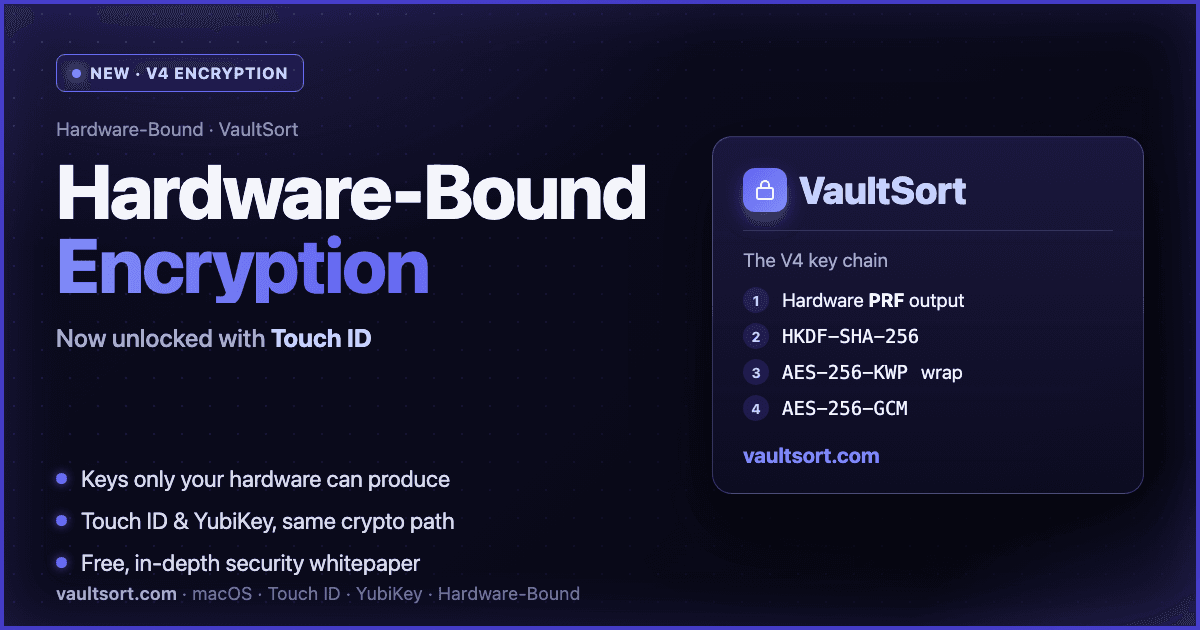
- Your hardware — a YubiKey or Touch ID — produces a PRF output: an HMAC computed with a secret that never leaves the device. Only that physical hardware can produce it.
- That output is run through HKDF-SHA-256 with a random per-file salt to derive a wrap key.
- The wrap key seals the file key with AES-256-KWP (authenticated key wrapping), and AES-256-GCM encrypts the file body — with the entire metadata header authenticated, so any tampering aborts decryption.
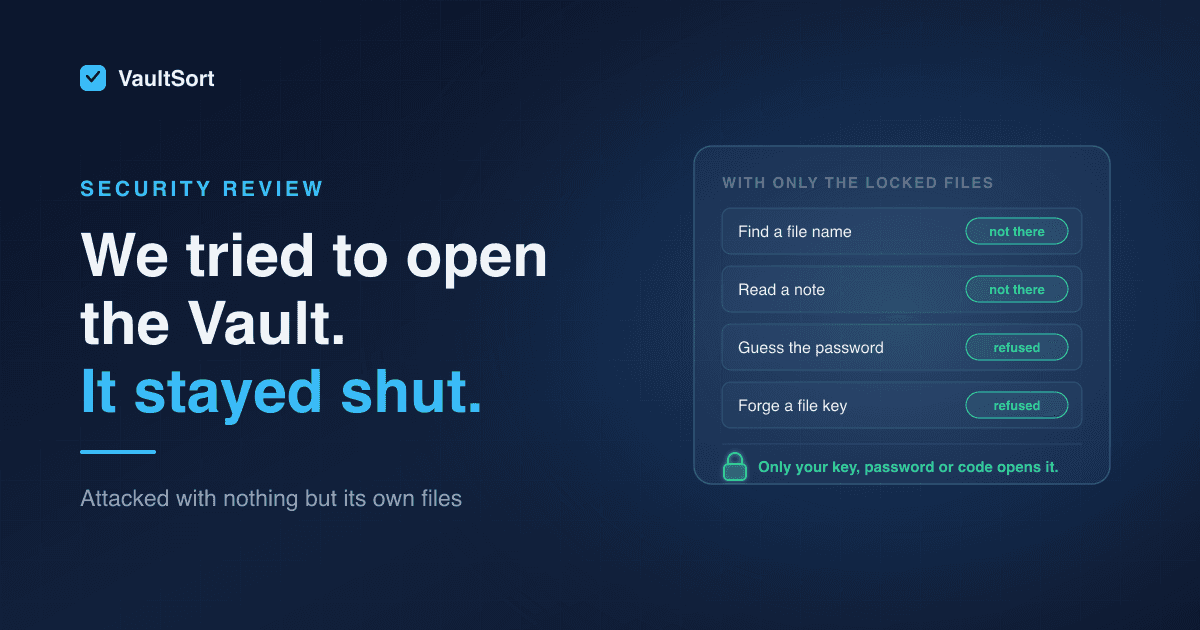
The payoff is simple to state: an attacker who steals your encrypted file and a complete copy of VaultSort's credential database still cannot decrypt anything, because the hardware's internal secret isn't in either place. They'd need the physical device in hand.
Why we rebuilt the format
We'll be honest about this, because we think encryption tools should be. During a routine review of our previous V3 format, we found a gap. V3 required a YubiKey touch to encrypt or decrypt — but the key that actually protected your files was derived from data stored on disk (credential IDs and public keys). The touch was enforced at the application layer, not by the cryptography. In principle, someone with both your encrypted files and a copy of VaultSort's credential store could derive the key offline, without ever touching the hardware.
It wasn't a trivial attack — it required two things an attacker doesn't normally have together — but it was a gap between what we claimed and what we delivered, and that's not acceptable for an encryption tool.
V4 closes it completely by making the hardware a cryptographic requirement, not a UI gate. And rebuilding it this way is precisely what let us add Touch ID with confidence: the same guarantees hold whether your key lives on a YubiKey chip or in Apple's Secure Enclave.

Your existing files are safe. VaultSort still reads V1, V2, V3, and V4 files — nothing you've already encrypted is affected.
A whitepaper for the skeptics
A proprietary "encrypted file format" with no documentation is a reasonable thing to be wary of. So we wrote everything down.
The VaultSort V4 Encryption Security Design Document is a free, in-depth whitepaper covering the threat model, the full cryptographic design, the byte-level file format, our algorithm choices and the standards they implement, and — importantly — the scenarios V4 explicitly does not protect against. No email required. If you've been holding off on VaultSort because you couldn't see inside the encryption, this is for you.
How to start using it
First, download VaultSort if you haven't already — the free trial includes everything.
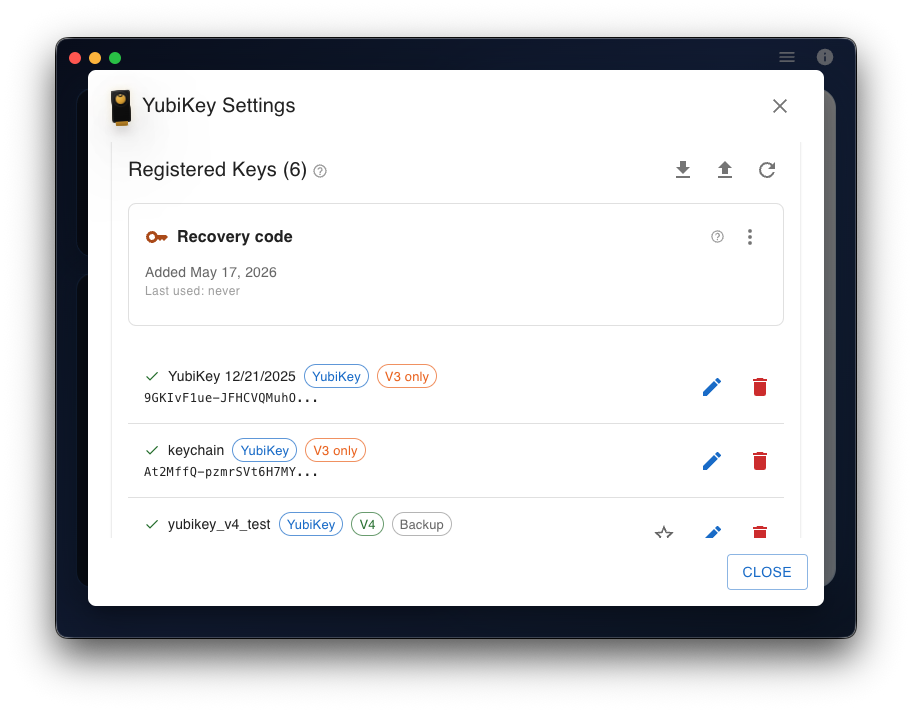
- Click the YubiKey status widget in VaultSort to open Key Settings.
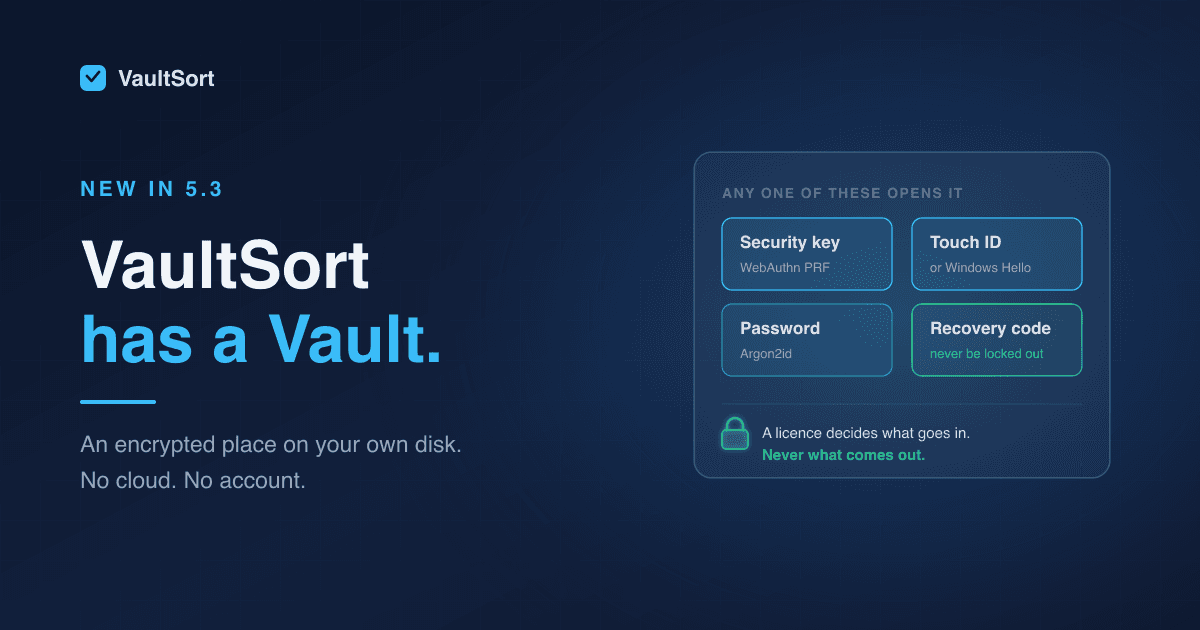
- Register a key — either Touch ID (choose iCloud Keychain when prompted) or a YubiKey (any modern FIDO2 key with PRF/hmac-secret support).
- Save the one-time recovery code you're offered. Store it in your password manager — it's your backstop if every hardware key is ever lost.
- Select a file and click Encrypt with Key.
- Optionally use Add backup key right after, so a second key can also open the file.
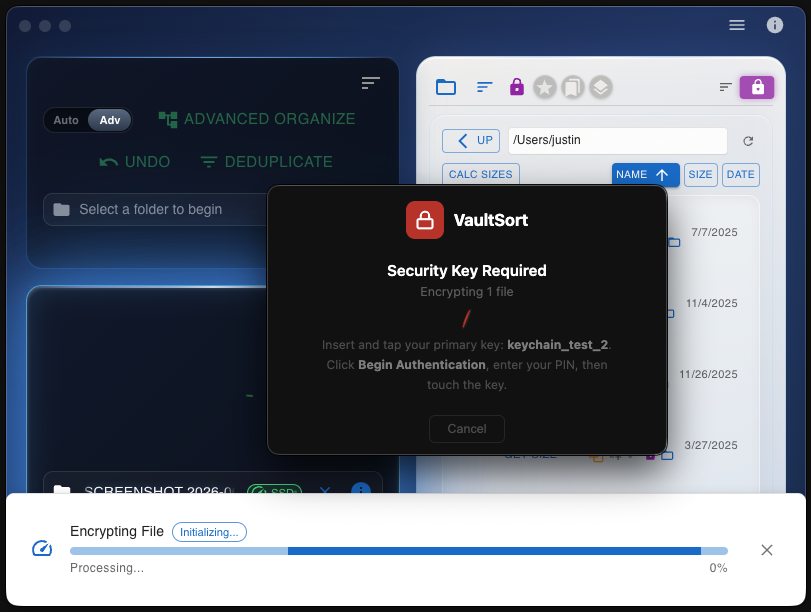
A couple of things worth knowing: a browser tab opens briefly for every encrypt, decrypt, and registration — that's the secure WebAuthn handoff, and it runs entirely on your own machine. VaultSort works best with a Chromium-based browser (Chrome, Edge, or Brave) as your default. For a full walkthrough, see how encryption works.
Try VaultSort free
V4 encryption and Touch ID support ship with every copy of VaultSort — along with everything else the app does:
- Local AI file organization — categorize thousands of files in seconds, no cloud required
- Hardware-bound encryption — Touch ID and YubiKey support with the V4 format
- Secure file deletion — DoD-standard wiping, optimized for your Mac's SSD
- Duplicate finder — find and remove duplicate files, photos, and audio
- Storage optimization — reclaim disk space with intelligent cleanup tools
No account required. No subscription. $24.99 one-time purchase, with a free trial to start.
Your files never leave your Mac — VaultSort runs 100% locally with zero telemetry. Read the privacy policy or the V4 security whitepaper to see exactly how your data is handled.
Download VaultSort
Organize, encrypt, and clean up your Mac. Try it free — no account required.
Related: How encryption works · Touch ID setup guide · All features · Security whitepaper · System requirements