title: "Cleaning Up an External Drive on Windows (Before It Fills Up Again)" date: "2026-08-27" excerpt: "External drives become the place things go to be forgotten. Here is how to work out what is actually on one, what is safe to remove, and how to erase it properly when it is time to hand the drive on." coverImage: "/images/blog/clean-external-drive-windows.png" categories: ["Storage", "Windows", "Cleanup", "Secure Deletion"]
Cleaning Up an External Drive on Windows (Before It Fills Up Again)
An external drive is where files go when you have not decided what to do with them. Backups from a laptop you no longer own. A folder called old-pc copied wholesale in 2022. Four versions of a video export. A Steam library you moved off the SSD and forgot.
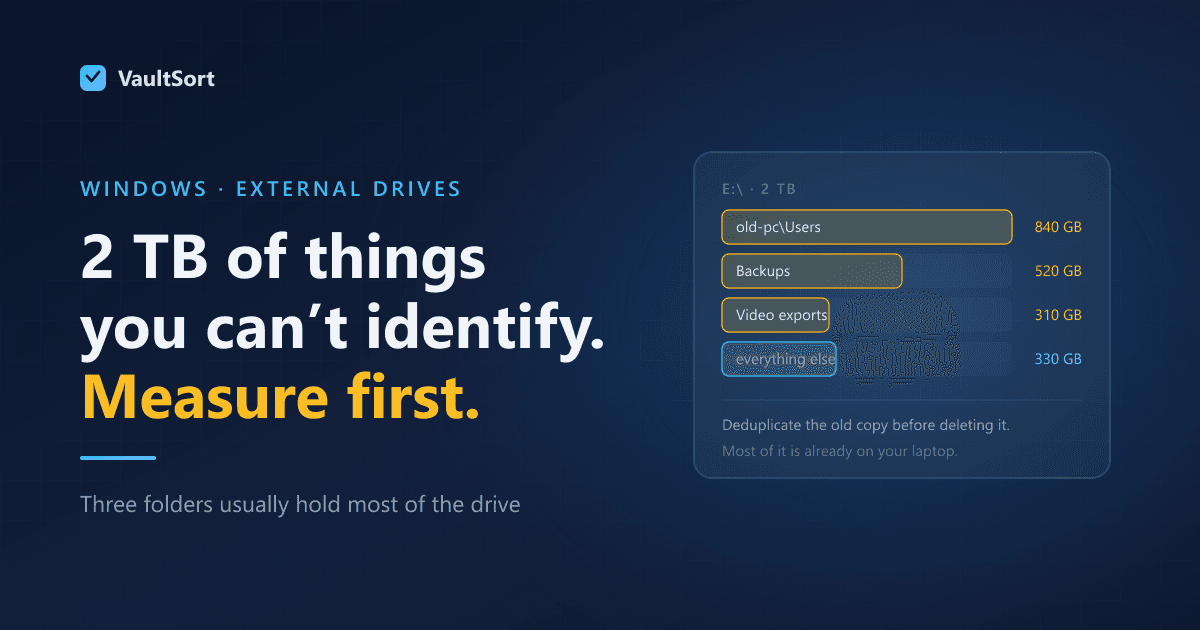
Then one day it is full, and you are looking at 2 TB of things you cannot identify.
This post is about identifying them, removing the right ones, and — when the drive is finally leaving your hands — erasing it properly rather than formatting it and hoping.
Start by Finding Out What Is On It
Explorer will tell you a folder's size if you ask it politely, one folder at a time, slowly. That is not a plan for 2 TB.
What you need is size by directory, sorted, so the answer arrives in one look. Almost always it turns out that three folders hold 80% of the drive, and the remaining hundreds are noise. Once you can see that, the decisions make themselves.
Only then is deleting a good idea. Deleting from an unmeasured drive is how people remove the only copy of something.
What Is Usually Taking the Space
Whole-machine copies
The old-pc folder, or a Users directory copied off a machine before it was wiped. These are the biggest single consumers on most external drives, and the most dangerous to delete, because somewhere inside is the one thing you actually kept it for.
Do not delete wholesale. Run a duplicate scan against your current machine first: most of it is already on your laptop, and what is genuinely unique is usually a handful of folders you can then move somewhere sensible.
Backup images and system snapshots
Windows File History, third-party backup images, macOS Time Machine sparsebundles from a previous life. Backup software rarely cleans up after itself and old images accumulate silently.
Safe to remove once you have confirmed you have a current backup. Confirm it — do not assume it.
Media you already have elsewhere
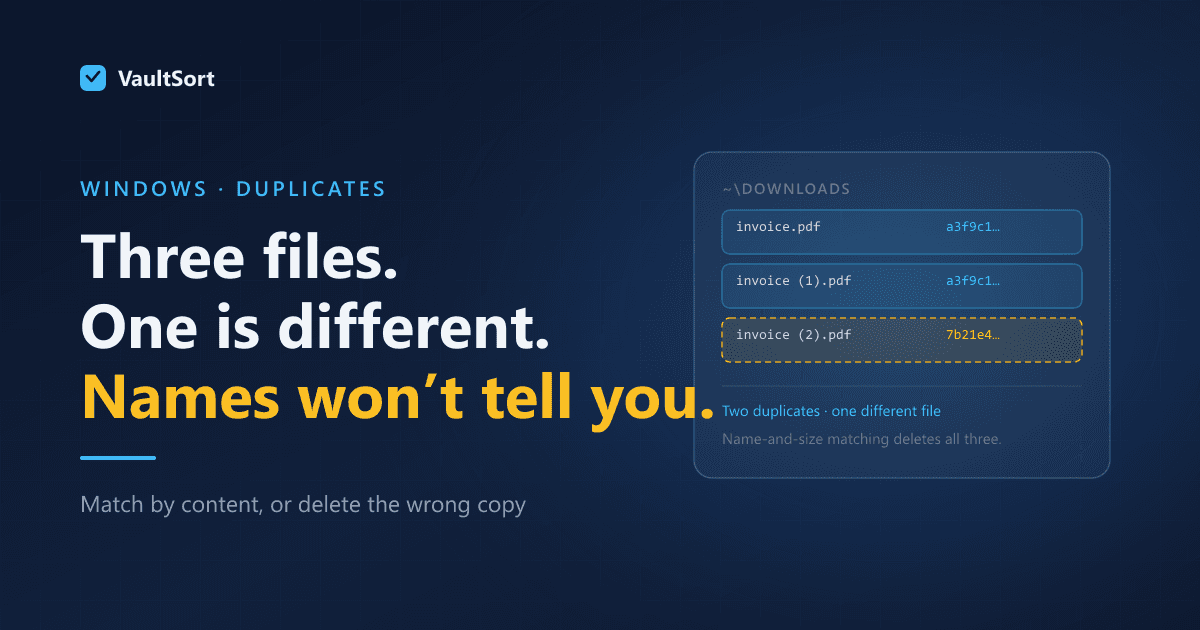
Video exports, photo imports, ripped libraries. This is where content-based duplicate detection earns its keep: the same file saved under four names across three folders is invisible to anything matching by filename.
The recycle bin you forgot exists
Every drive has its own hidden $RECYCLE.BIN. Deleting files from an external drive in Explorer moves them there, on that drive, still consuming space. Emptying the Recycle Bin while the drive is connected clears it; people who delete and then disconnect often leave gigabytes behind.
System Volume Information
Restore points and indexing data, per-drive. Do not delete it by hand. Disable System Protection for that drive if you do not want it.
When the Drive Is Leaving
This is the part people get wrong, and it is worth separating clearly from cleaning.
Formatting is not erasing. A quick format writes a fresh filesystem structure and leaves every byte of your data in place, recoverable with free software. Three seconds is the giveaway — writing 2 TB of anything takes longer than three seconds.
A full format does write zeros in modern Windows, which is genuinely better and often enough for a hard disk.
On an SSD or a flash drive, overwriting behaves differently: the controller spreads writes across the device and keeps spare capacity your operating system cannot address, so data can survive in cells that no amount of writing through the filesystem will reach. TRIM, which tells the controller which blocks are free so it can erase them, works with the hardware instead of against it.
Whole-drive erase is the complete answer when the device itself is being retired. It is also the slow one: on real hardware, a 62 GB USB drive took 1 hour 9 minutes for a single pass and 3 hours 29 minutes for three. Worth knowing before you start rather than three hours in.
How VaultSort Helps
VaultSort for Windows is in beta and handles both halves of this.
Storage breakdown by folder, so 2 TB becomes three folders and some noise rather than a scroll.
Large file finder, for the exports and ISOs.
Duplicate detection by content, which is what catches the same file saved under four names — the single most effective thing you can run against an old whole-machine copy.
Free-space shredding, so files deleted from the drive long ago cannot be recovered from what was left behind. Run to completion on a 62 GB volume.
Whole-drive erase and TRIM, for when the drive is being sold, returned or thrown away, with progress reported in real bytes and an honest estimate of how long it will take.
Two limits worth stating. Erasing a single volume is refused on multi-partition removable media, because it cannot be done safely — the whole-disk alternative is offered instead. And system-level cleanup is partial on Windows compared with the macOS build; the user-level cleaner is the part exercised end to end on real hardware.
The Order That Works
- Measure. Size by folder, before touching anything.
- Deduplicate against your current machine. Most of an old whole-machine copy is already somewhere else.
- Delete the obvious categories — superseded backup images, media you have elsewhere.
- Empty that drive's Recycle Bin while it is still connected.
- Move what is genuinely unique somewhere it will be backed up, because an external drive is not a backup.
- If the drive is leaving, whole-drive erase. If it is staying, free-space shred and TRIM.
The last point is the one people skip. A drive you keep in a drawer is a single copy of everything on it, and drawers are not redundancy.
VaultSort for Windows is in beta and free to try. Download it here. Related: securely erasing an SSD or USB drive.