title: "Secure File Deletion on Windows: Why Emptying the Recycle Bin Deletes Nothing" date: "2026-08-24" excerpt: "Emptying the Recycle Bin removes a file's name, not its contents. Here is what actually survives on a Windows disk after a delete — including the alternate data streams most shredders miss — and how to remove it properly on both SSDs and hard drives." coverImage: "/images/blog/secure-file-deletion-windows.png" categories: ["Security", "Windows", "Secure Deletion", "Privacy"]
Secure File Deletion on Windows: Why Emptying the Recycle Bin Deletes Nothing
You select a file, press Shift+Delete, and Windows asks whether you are sure you want to delete it permanently. You say yes. The file disappears.
Almost none of that is true.
The file's contents are still on the disk, byte for byte, exactly where they were a moment ago. What changed is a record in the filesystem saying that space is available for reuse. Until something happens to overwrite it, the data is recoverable with tools that cost nothing and require no expertise.
This matters if you are selling a laptop, returning a work machine, handling client files under a confidentiality obligation, or disposing of anything you would not hand to a stranger. This post explains what actually remains after a Windows delete, the parts most secure-deletion tools miss, and why the correct method depends on whether your drive is an SSD or a hard disk.
What Windows Actually Does When You Delete a File
NTFS keeps a Master File Table — an index of every file on the volume, where its data lives, and what it is called. Deleting a file marks its MFT record as unused and adds its clusters to the volume's free-space bitmap.
That is the whole operation. It is fast precisely because it does not touch your data.
The consequences follow from that:
- The contents remain until overwritten. On a lightly used drive that can be months. On an archive drive it can be years.
- The file name and metadata often remain too. MFT records are reused lazily, so directory entries frequently survive long after the file is "gone".
- Copies you never made still exist. Windows takes Volume Shadow Copies for System Restore and File History. A file deleted today may sit in a snapshot from last week, untouched by anything you do to the original.
Undelete tools do not perform forensics. They read the same structures Windows left behind.
The Part Most Shredders Miss: Alternate Data Streams
Here is the failure that separates a real secure-delete implementation from a naive one.
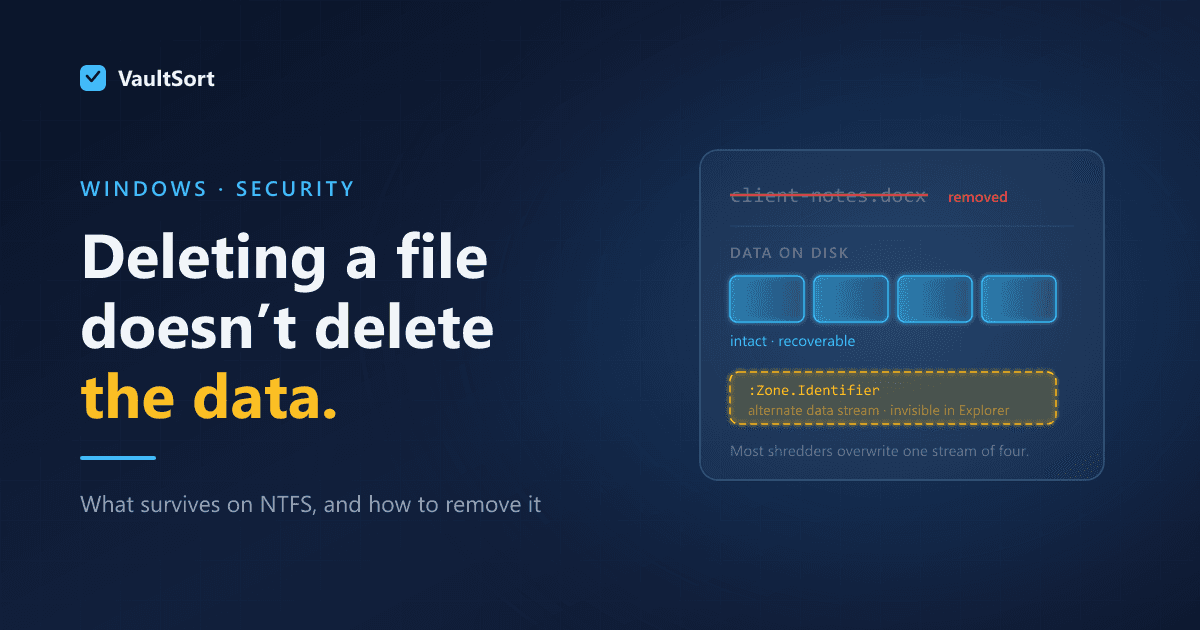
NTFS files can carry more than one stream of data. The content you see is the unnamed default stream. A file can also carry alternate data streams — additional, named payloads attached to the same filename, invisible in Explorer and not counted in the size Windows displays.
Alternate data streams are not exotic. Windows itself uses them constantly: the Zone.Identifier stream is what marks a file as downloaded from the internet and triggers the "this file came from another computer" warning.
They can also hold arbitrary data of any size. A 2 KB text file can carry 500 MB in an alternate stream, and Explorer will report it as 2 KB.
The problem for secure deletion is direct: a shredder that overwrites "the file" and only touches the default stream leaves every alternate stream on disk untouched. It reports success. The data survives. Nothing on screen indicates the difference.
Handling this correctly means enumerating every stream attached to a file and overwriting each one — not just the one you can see. It is a Windows-specific concern with no macOS equivalent, and it is exactly the sort of platform detail that gets skipped when a Mac tool is ported by search-and-replace.
SSDs Change the Rules Entirely
Traditional secure deletion overwrites a file in place, several times. On a hard disk that works: sectors are addressed directly, and writing to a logical sector writes to that physical sector.
On an SSD it does not.
SSD controllers maintain their own mapping between the addresses your operating system uses and the physical flash cells underneath. Because flash wears out, the controller deliberately spreads writes across the device — wear levelling — and keeps spare capacity you cannot address at all — over-provisioning, typically 7% or more of the drive.
When you overwrite a file on an SSD, the controller usually writes your new data to a different physical location and marks the old cells for later erasure. The original contents remain in flash, unreachable through normal file access but present on the hardware.
So a 35-pass overwrite on an SSD is not 35 times more thorough than one pass. It is mostly 35 times more wear, achieving something the controller was designed to prevent.
The correct approach on an SSD is different in kind:
- TRIM tells the drive which blocks no longer hold live data, so the controller can erase them during garbage collection. This works with the hardware rather than against it.
- Free-space overwriting fills unallocated space so that previously deleted content has nowhere left to hide, then releases it.
- Full-drive erase is the only complete answer when the whole device is being retired.
A tool that offers a single "shred" button and applies it identically to every drive is either damaging your SSD or failing to erase your hard disk. The method has to follow the hardware.
What VaultSort Does on Windows
VaultSort for Windows is currently in beta, and secure deletion is one of the areas that has been measured on real hardware rather than assumed to work.
Per-file and per-directory secure deletion. Files are overwritten before their filesystem records are removed, with the pass count matched to the drive type rather than applied uniformly. Alternate data streams are enumerated and overwritten alongside the default stream.
Free-space shredding. Fills the unallocated space on a volume so that previously deleted files cannot be recovered from it. This has been run to completion on a 62 GB volume.
TRIM on demand. VaultSort can issue a retrim through the Windows storage layer, telling an SSD controller which blocks are free so it can erase them. This is a Windows-only capability — macOS exposes no equivalent command, so this is one of the few places where the Windows build can do something the Mac build cannot.
Whole-disk erase. For retiring a drive entirely, with progress reported honestly, including how long a multi-pass run will actually take. A three-pass erase of a 62 GB device took three and a half hours on real hardware — a number worth knowing before you start rather than after.
Honest reporting. If an operation cannot reach something — a locked file, a protected system directory, a volume layout that cannot be safely erased — VaultSort says so rather than reporting success. A secure-deletion tool that overstates what it did is worse than no tool at all, because you stop being careful.
Choosing the Right Method
| Situation | What to use |
|---|---|
| A few sensitive files, HDD | Per-file secure delete, multi-pass |
| A few sensitive files, SSD | Per-file secure delete, single pass, then TRIM |
| Files you deleted normally, long ago | Free-space shred |
| Selling or returning the machine | Full-disk erase |
| Data covered by a retention or compliance obligation | Full-disk erase, and keep the record of it |
One caveat that no tool can solve for you: Volume Shadow Copies. If System Restore or File History captured a snapshot while your file existed, a copy lives in that snapshot regardless of what you do to the original. Clearing shadow copies is a separate, deliberate step, and worth taking before you conclude a file is gone.
The Short Version
Emptying the Recycle Bin removes a reference. It does not remove data. Recovering that data requires no skill and no money, which is what makes the gap worth closing.
On a hard disk, overwrite. On an SSD, work with the controller instead of fighting it. On NTFS, remember that a file can be carrying data you cannot see. And whichever tool you use, prefer one that tells you what it could not reach over one that always says it worked.
VaultSort for Windows is in beta and free to try. Download it here, or read about how VaultSort handles storage type on macOS for the equivalent discussion on Apple hardware.