title: "How to Free Up Disk Space on Windows Without Deleting Anything You Need" date: "2026-08-25" excerpt: "Most Windows disk-space guides tell you to empty the Recycle Bin and uninstall games. Here is where the space actually goes — hibernation files, shadow copies, WinSxS, browser and application caches — and which of it is safe to remove." coverImage: "/images/blog/free-up-disk-space-windows.png" categories: ["Storage", "Windows", "Cleanup", "Productivity"]
How to Free Up Disk Space on Windows Without Deleting Anything You Need
Windows tells you the C: drive is nearly full. You empty the Recycle Bin, uninstall a game you finished last year, and reclaim eleven gigabytes. A week later you are back where you started.
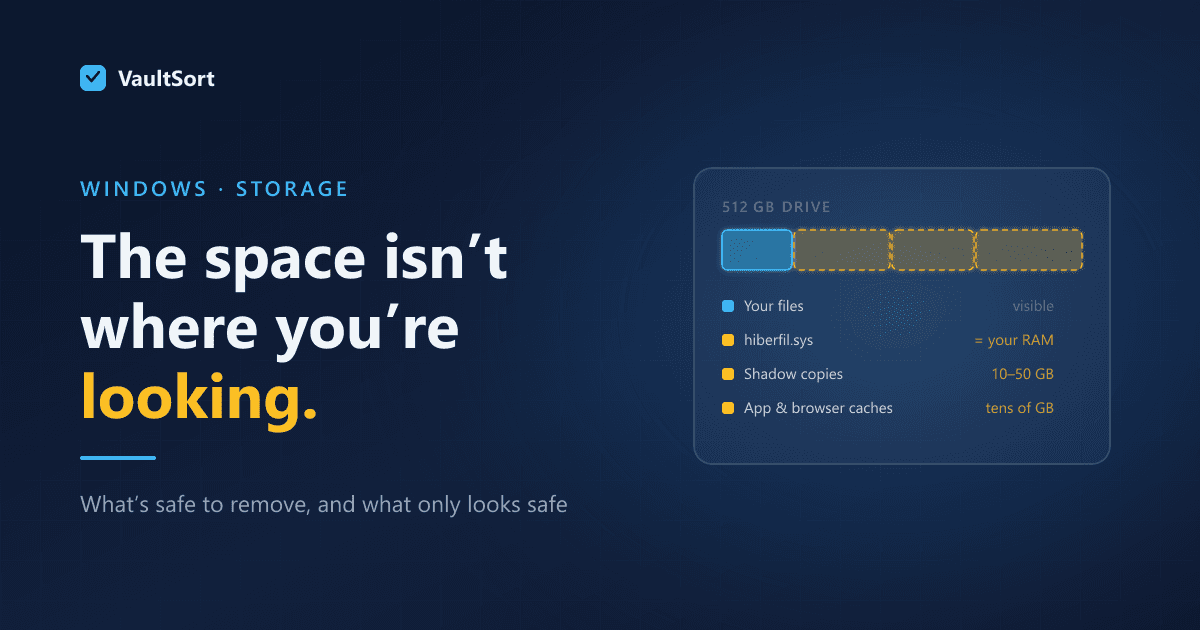
The problem is that the space is rarely in the places you can see. Explorer shows you documents and downloads; the actual consumers are system files, caches and snapshots that no folder view puts in front of you.
This post covers where the space genuinely goes on Windows, what is safe to remove, and — more importantly — what looks safe and is not.
Find Out Where It Went Before Deleting Anything
Deleting on instinct is how people remove things they needed. Start by measuring.
Windows' own Storage Settings (Settings → System → Storage) gives a category breakdown, which is a reasonable first look. It will usually show a large "System & reserved" and an "Other" that it declines to explain, which is where the interesting answers live.
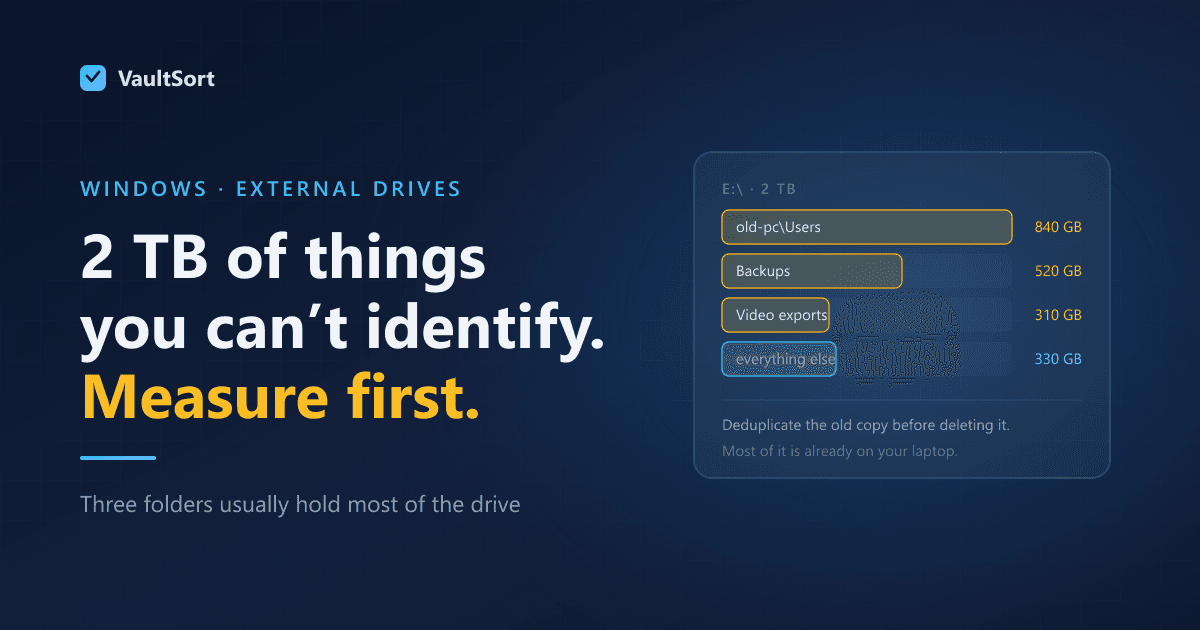
For a real answer you need a tool that walks the tree and shows you size by folder. Once you can see that a single cache directory is holding 40 GB, the decision makes itself.
Where the Space Actually Goes
Hibernation file (up to your full RAM size)
C:\hiberfil.sys is as large as your installed RAM — 32 GB of RAM means a 32 GB file. It exists so the machine can hibernate and to support Fast Startup.
If you never hibernate a desktop, this is the single biggest one-command win available:
powercfg /hibernate off
Caveat: this also disables Fast Startup, so boots get slightly slower. On a laptop, keep hibernation.
Volume Shadow Copies (often 10–50 GB)
System Restore and File History keep snapshots of previous file states. They are genuinely useful — right up until they are silently consuming a tenth of your drive.
You can cap the space they are allowed rather than disabling them, which is almost always the right trade. Settings → System → About → System Protection → Configure.
Worth knowing for a different reason: shadow copies are also why "I deleted that file" is often untrue. A copy can live in a snapshot long after the original is gone.
WinSxS / the component store (often 8–15 GB)
C:\Windows\WinSxS holds the components Windows needs to uninstall updates and repair itself. It looks enormous in Explorer and is partly an illusion — much of it is hard links counted repeatedly.
Do not delete anything in it manually. You will break Windows Update, and possibly Windows. The supported cleanup is:
DISM /Online /Cleanup-Image /StartComponentCleanup
That removes superseded components and typically reclaims a few gigabytes, at the cost of no longer being able to uninstall the updates it cleaned.
Windows Update leftovers (5–20 GB)
C:\Windows\SoftwareDistribution\Download holds installers already applied. Safe to clear once updates are working. Disk Cleanup's "Clean up system files" handles it properly.
Browser and application caches (frequently the biggest surprise)
Chrome, Edge, Firefox, Spotify, Discord, Teams, Adobe apps, Docker, npm, pip, Gradle, Unity — every one keeps a cache, and none of them are shy about it. Individually they are a few hundred megabytes; collectively, on a development machine, they are routinely tens of gigabytes.
These are safe to clear. That is what a cache is: expensive to rebuild, never authoritative. The cost of clearing one is a slower next launch.
Downloads (yours, and worse than you think)
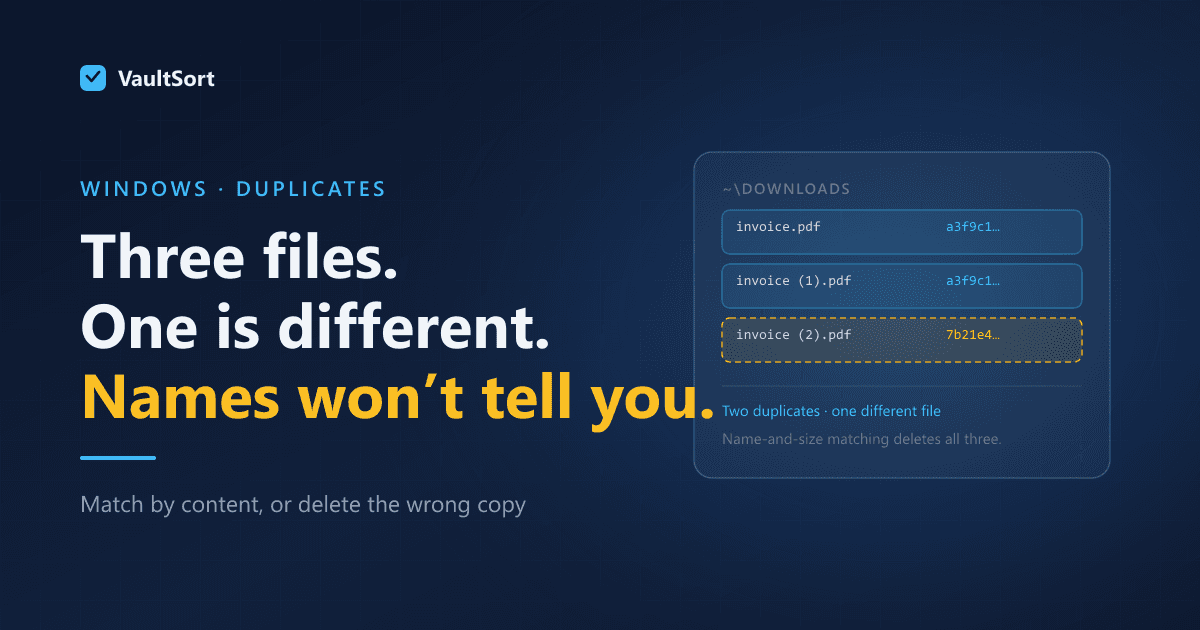
Nobody's Downloads folder is smaller than they expect. Installers you already ran, ISOs, duplicate PDFs, three copies of the same attachment.
Sort by size before deleting anything, and be careful — Downloads is also where people keep the only copy of things.
What Not to Touch
C:\Windows\System32— obviously, but people do it.pagefile.sys— you can move it, you should not delete it. Windows needs virtual memory even with plenty of RAM.- WinSxS by hand — use DISM, as above.
- Program Files folders for apps you still use — uninstall properly rather than deleting the directory, or you will leave registry entries and services behind.
- Anything in a
.gitdirectory — it looks like cache and it is your history.
Where VaultSort Fits
VaultSort for Windows is in beta, and space reclamation is one of the parts that has been exercised on a real build rather than assumed to work.
A storage breakdown that shows size by folder, so you can see the 40 GB cache directory rather than guessing at "Other".
Space Saver, which finds application and browser caches across the user profile and clears them against a generated allowlist — it will only remove paths that are known-safe cache locations, rather than anything that merely looks disposable.
Large file finder, for the ISO you forgot about in 2024.
Duplicate detection by content rather than filename, which is what catches the same photo saved four times under four names.
Two things worth stating honestly. System-level cleanup is partial on Windows compared with the Mac build — the user-level cleaner is what has been exercised end to end. And when a run cannot delete something, VaultSort says so: locked cache files are routine on Windows, and an earlier version of this feature reported them identically to genuine failures, which made a successful run that freed several gigabytes announce "52 files could not be deleted". Reporting a locked file as a failure is not honest either.
A Sensible Order
- Measure first. Know where the space is before removing anything.
- Hibernation, if it is a desktop you never hibernate. Biggest single win, one command.
- Cap shadow copies rather than disabling them.
- Clear caches. Safe by definition, and usually the largest recoverable total.
- DISM component cleanup. A few gigabytes, fully supported.
- Then look at your own files — duplicates and large files, in that order.
If you are still short after all that, the honest answer is that the drive is too small for what you are doing, and another 5 GB of cache clearing will not change it.
VaultSort for Windows is in beta and free to try. Download it here. On a Mac? The macOS version of this guide covers the equivalent ground.